Live photo wall: the complete guide to bringing your event to life in real time
Published on June 23, 2026 · updated on July 11, 2026 · The Fotelya team
The live photo wall displays on a large screen the photos uploaded by guests, as they arrive throughout the evening. It’s a silent host: it creates emotion, reminds everyone they can take part, and turns the screen into a living thread of memories. Here’s the complete guide, from connecting the screen to choosing the display style.
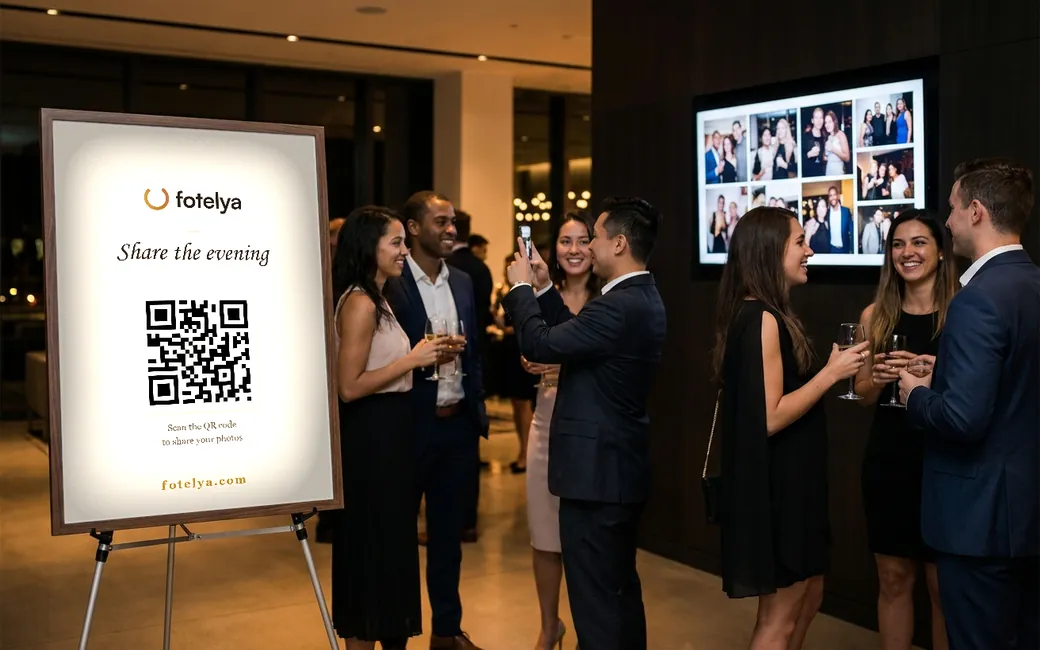
What is a live photo wall
It’s a display on a screen or projector that shows the latest photos shared by guests. Each new image appears in real time, just seconds after being sent.
In practice, it’s simply a web page: you open it on the device connected to the screen and it updates automatically throughout the evening. No installation is required, neither for you nor for the guests.
Why it boosts participation
The wall creates a loop: a guest sees their photo appear, their table neighbors see it too, and each person pulls out their phone to scan the QR code in turn. Participation sustains itself without anyone having to prompt it.
The screen also acts as a constant reminder: a QR code stays displayed in one corner of the wall, so even latecomers understand at a glance how to contribute.
Finally, it shifts attention to the right place: instead of photos sleeping in phones, the memories become a shared spectacle during the event itself.
The equipment you need (checklist)
- A screen: venue TV, smart TV, or projector with a clear wall section.
- A device to display a web page: laptop, mini-PC, or the smart TV’s built-in browser.
- An internet connection for that device: the venue’s Wi-Fi or a phone’s hotspot.
- Depending on the method: an HDMI cable, Chromecast, or Apple TV.
That’s all. Since the wall is a web page, no software needs to be installed and no account needs to be created on the projecting device.
Connecting the wall to a TV or projector, step by step
Method 1, the most reliable on the day: HDMI cable. Connect a laptop to the TV or projector, open the wall’s URL in the browser, switch to full screen (F11 key on most browsers) and disable the computer’s sleep mode. A cable depends neither on the venue’s Wi-Fi nor on a third-party box.
Method 2: Chromecast or Google TV. From Chrome on a computer, open the wall then use the Cast function (Chrome menu, “Cast, save and share”, target: your Chromecast, source: the tab). The computer must stay on and on the same Wi-Fi network as the Chromecast.
Method 3: AirPlay and Apple TV. From a Mac, iPhone or iPad, enable screen mirroring to the Apple TV, then open the wall in full screen. Same requirement: both devices on the same network.
Method 4: the smart TV’s browser. Many recent TVs have a built-in browser: enter the wall’s URL directly, with no other device. Test the day before, as TV browsers vary; if the display is correct, this is the simplest setup available.
In all cases, do a full test the day before or on the morning of the event: screen on, wall open, send a photo from a phone to confirm it appears.
Where to place the screen
Place the screen where guests pass by and linger: near the bar, buffet, or room entrance. Avoid competing with the dance floor lighting, where attention is already focused.
Turn the wall on early, from the welcome or cocktail hour: the first photos displayed kick off the collection for the entire evening. A decorative waiting screen matching your theme dresses up the display while the first photos arrive.
Choosing the display style
The polaroid style gives a warm, nostalgic look, ideal for weddings or birthdays.
The cinematic style highlights one photo at a time, large-scale: perfect for key moments, speeches, or a projector.
The mosaic style displays multiple images at once: suited to lively parties, high-traffic areas and large groups who send many photos.
Multiple screens, multiple vibes
At a large event, there’s no need to display the same thing everywhere: a cinematic wall near the guestbook, a mosaic at the bar, a polaroid at the entrance. With Fotelya, each screen can have its own style (per-screen mode, available in the Premium plan): simply open the wall’s address on each device with the chosen mode.
Unreliable Wi-Fi: what to do
If the venue’s Wi-Fi is weak, connect the projecting device to a phone’s hotspot: the wall consumes little data (it refreshes images, not continuous video).
Guests, on the other hand, send photos from their own mobile data: a cut in the venue’s Wi-Fi won’t stop the collection. If the screen loses the network for a few minutes, the wall updates automatically upon reconnection.
Moderation, your safety net
On a public screen, you want to control what’s displayed. Choose a service with moderation: with Fotelya, AI-assisted moderation (European) flags or hides problematic content, and you have the final say from your dashboard, with one-click restoration in case of a false positive. Guests also have a reporting button.
With Fotelya
The live photo wall is included from the Event plan (49 € incl. VAT, one-time payment): three styles to choose from, decorative waiting screen matching your theme, permanent QR code on screen, and continuous updates. The Premium plan adds per-screen mode (a different style per screen) and display animations. All without an app: your guests scan, the wall comes to life.