Wedding seating plan in Excel: the free template, and what to do next
Published on 19 August 2026 · The Fotelya team
A spreadsheet remains the most effective tool for preparing a seating plan: it counts, filters, keeps track of who responded with what, and holds up over several months. Here’s a ready-to-use template, available for download without registration or email, followed by the steps to turn your table into a readable display for your wedding day.
Download the template
The file is here: wedding seating plan template (Excel file). No registration, no email required, no limited version. You download, open, and fill it in.
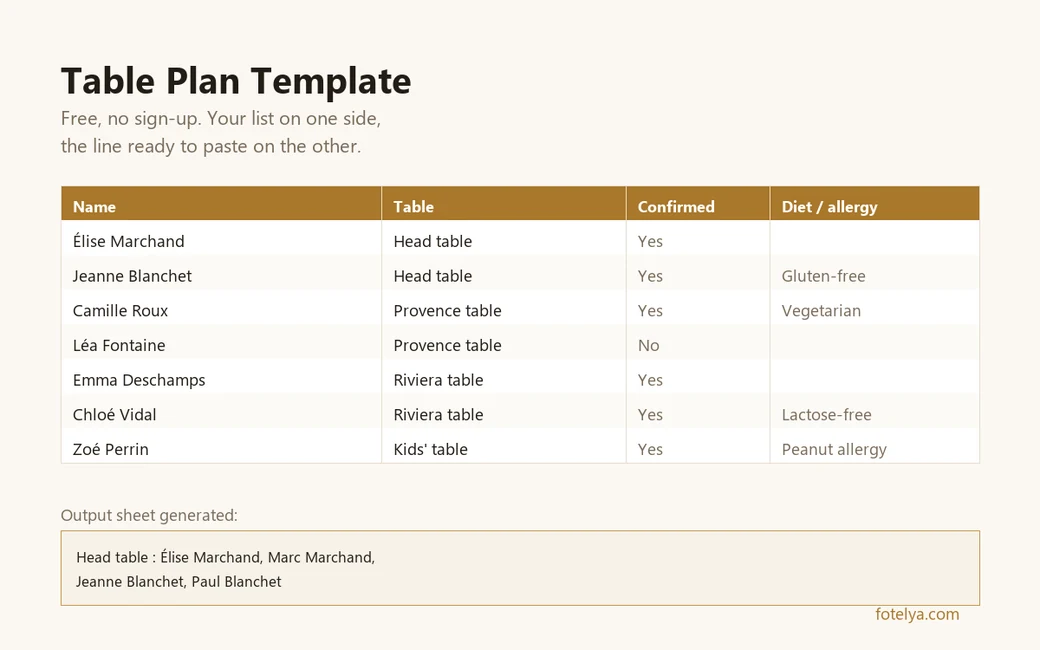
It includes three sheets: your guest list, a self-updating summary by table, and an output sheet ready to paste into a poster generator. The formulas use no recent functions, so it opens in older spreadsheet software too.
Four example tables are already filled in to show how it works. Delete them and add your own: everything else updates automatically.
Why a spreadsheet is still hard to beat
A seating plan isn’t a graphic task: it’s a management task. You track responses arriving out of order over several weeks, count place settings for the caterer, gather dietary restrictions, and change your mind. A spreadsheet does exactly that, and it does it well.
It can also answer unexpected questions in a second: how many people have confirmed, how many gluten-free meals, how many children, how many seats left at the colleagues’ table. You’ll be asked these numbers, often at the last minute.
Finally, it keeps a record. Six months later, you’ll still know why one person wasn’t seated next to another, if you took thirty seconds to note it in the designated column.
The three sheets in the template
The Guests sheet is your workspace. One line per person, with their name, table, response, dietary requirements, and a free notes column. This is the only sheet you’ll really fill in.
The Tables updates automatically from the first sheet. It groups guests by table on one line, counts expected attendees and confirmations. You’ll instantly spot a table that’s too full or too empty.
The To paste doesn’t update either: it formats the result for the next step, the display. You only touch it to copy its content.
The columns that prevent real headaches
The Confirmed column shows Yes, No, or Pending. It seems minor, but it lets you count actual place settings instead of sent invitations. The gap between the two always widens more than you think.
The Diet or allergy avoids an awkward conversation the night before. Note what guests tell you when they tell you: gluten-free, vegetarian, nut allergy. The caterer will ask for totals, and you’ll have them without rereading messages.
The Notes is the column people overlook and later regret. Limited mobility, a recent falling-out, a guest leaving early, someone who shouldn’t sit near speakers: this information exists nowhere else but in your head.
How many people per table, and how many tables
A round table comfortably seats between eight and ten people. Fewer, and the table feels empty, conversation lags. More, and guests at the ends won’t talk, with one spending the evening half-turned.
Rectangular tables change the dynamic: conversation flows with the two neighbors and the person across, rarely beyond. This format works well for groups who already know each other, less so for tables mixing strangers.
Plan for more tables rather than fewer. An extra half-filled table can be adjusted on the day; a table where you hastily add two chairs will show in every photo.
What a spreadsheet can't do: be read while standing, from a distance
When the day comes, your spreadsheet is no longer useful. No one checks a spreadsheet at the entrance of a room. Guests look for their name, want to find their table in seconds, and head back to the aperitif.
A printed spreadsheet creates a dense, grey grid with uniform font and columns that break at the end of the page. It’s readable from thirty centimeters away, not two meters, and it doesn’t match the rest of your decor.
This is a tool limitation, not a method flaw: a spreadsheet is made for calculations, not for display. The right solution isn’t to force the layout in the spreadsheet: it’s to extract the data and compose it elsewhere.
From spreadsheet to poster, in one copy-paste
Open the sheet To paste from the template. Select column A starting from row 4, to the bottom, and copy.
Then open the free seating plan generator and paste into the designated field. Each table appears on a line, with its guests: the tool designs the poster, you choose a style, and download a high-resolution file ready for printing in A4 or A3.
Let’s clarify what this tool does and doesn’t do. It doesn’t move your guests or arrange any seating: that’s your spreadsheet’s job, and it does it better. The tool takes the result and formats it. The division of roles is clear, and that’s what makes the process fast.
It works without an account or data submission: the design is created in your browser, and your guest list never leaves your device.
Mistakes that cost you on the day
The first is inconsistent names. If the displayed plan says “Grandma Jeanne” and the place card says “Jeanne Blanchet,” some of your guests will hesitate. Use the same format on the plan, the menus and the place cards, and decide once and for all between first name only or full name.
The second is finalizing the plan too early. Last-minute responses often arrive in the week before, sometimes the day before. Keep a few flexible spots and accept reprinting: it’s a sheet of paper, not a final decision.
The third is having only one poster at the entrance. If the room is large or arrivals are grouped, two copies placed in two different spots avoid crowding and lines at the least enjoyable moment of the evening.